Features
Everything CutNest does
Nesting for sheet and bar, proof when the answer is the minimum, and the paperwork that follows: cut sheets, labels, DXF and a quote for your customer. The free plan is the full engine; Pro is for running jobs through it every week.
From cut list to customer quote
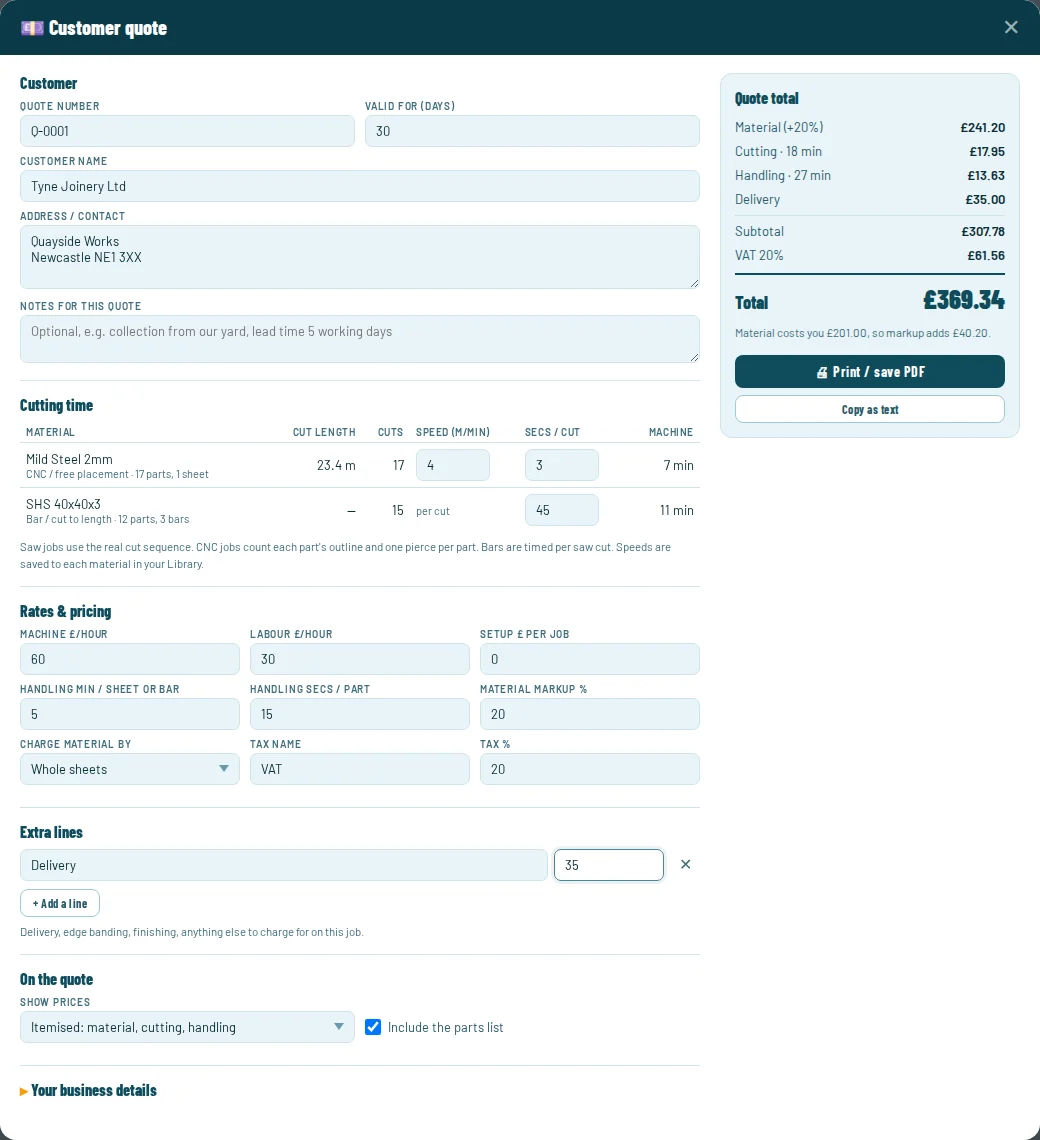
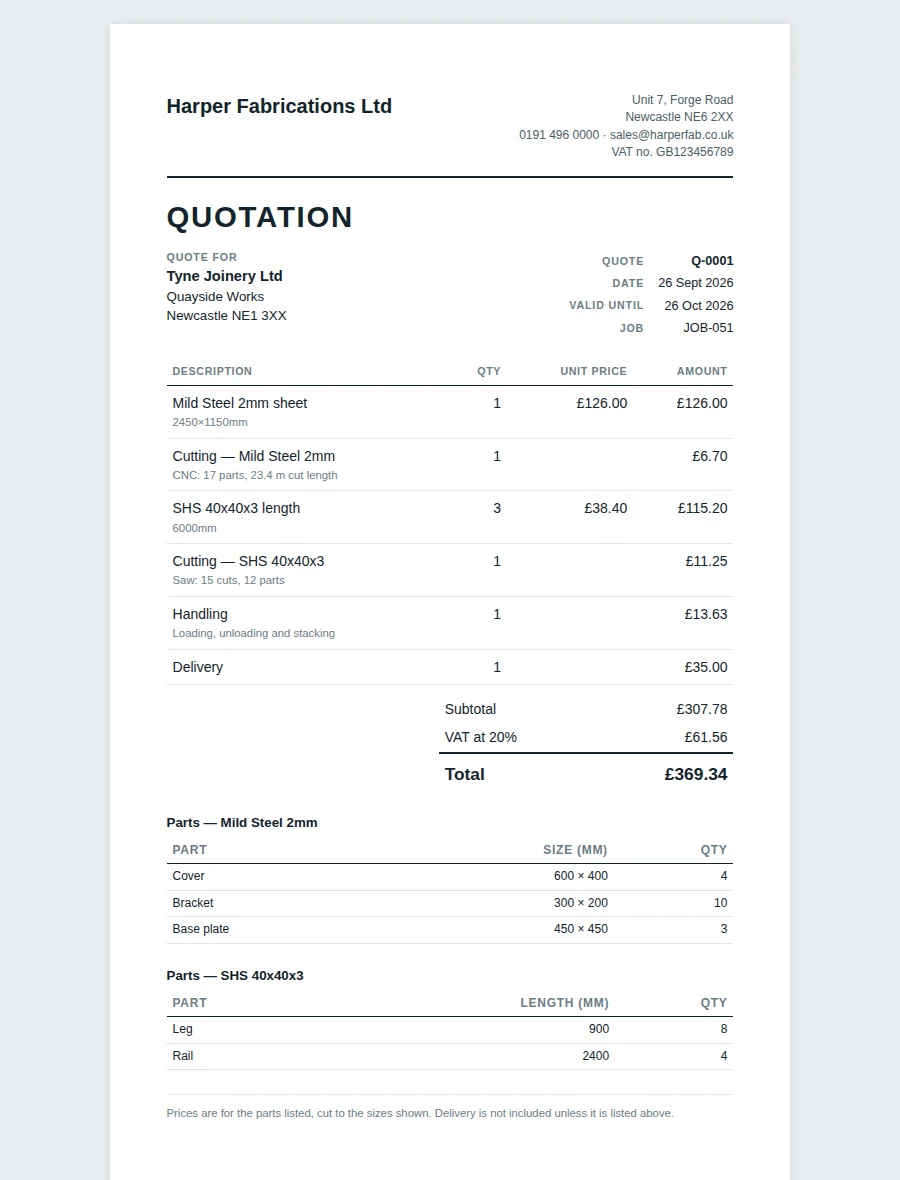
CutNest already knows the material. Now it prices the whole job: cutting time worked out from the actual layout (the saw’s cut sequence, the laser’s cut length), handling, setup and extras at your own rates, markup and VAT. Out comes a quote with your logo, ready to send.
Pro
Bar, tube & extrusion
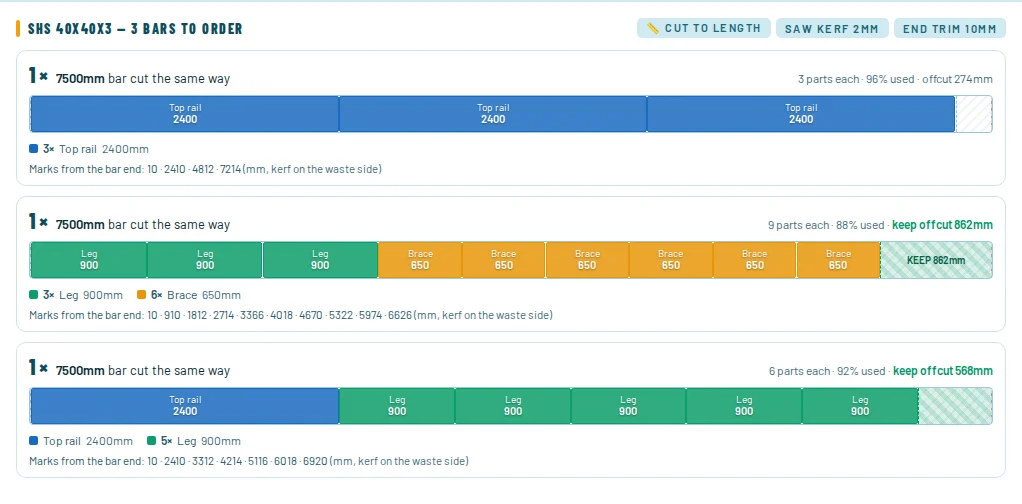
Box section, angle, flat bar, aluminium extrusion, timber lengths — cut to length from your stock lengths with the fewest bars, a saw list for every cutting pattern, and the offcuts worth keeping marked. With Pro, sheets and bars go in the same job and the same quote.
All plans
Grain direction lock
Brushed stainless, veneered MDF, patterned glass, wood grain — some materials can’t be rotated. Lock the grain on a whole material, or set it part by part: lock the doors, let the shelves turn. CutNest never flips a locked piece against the grain.
Pro
Cost-aware optimisation
Enter your sheet prices and CutNest minimises your total spend — not just sheet count. A cheaper smaller sheet that creates more waste isn’t always better. CutNest knows the difference.
Pro
Guillotine mode
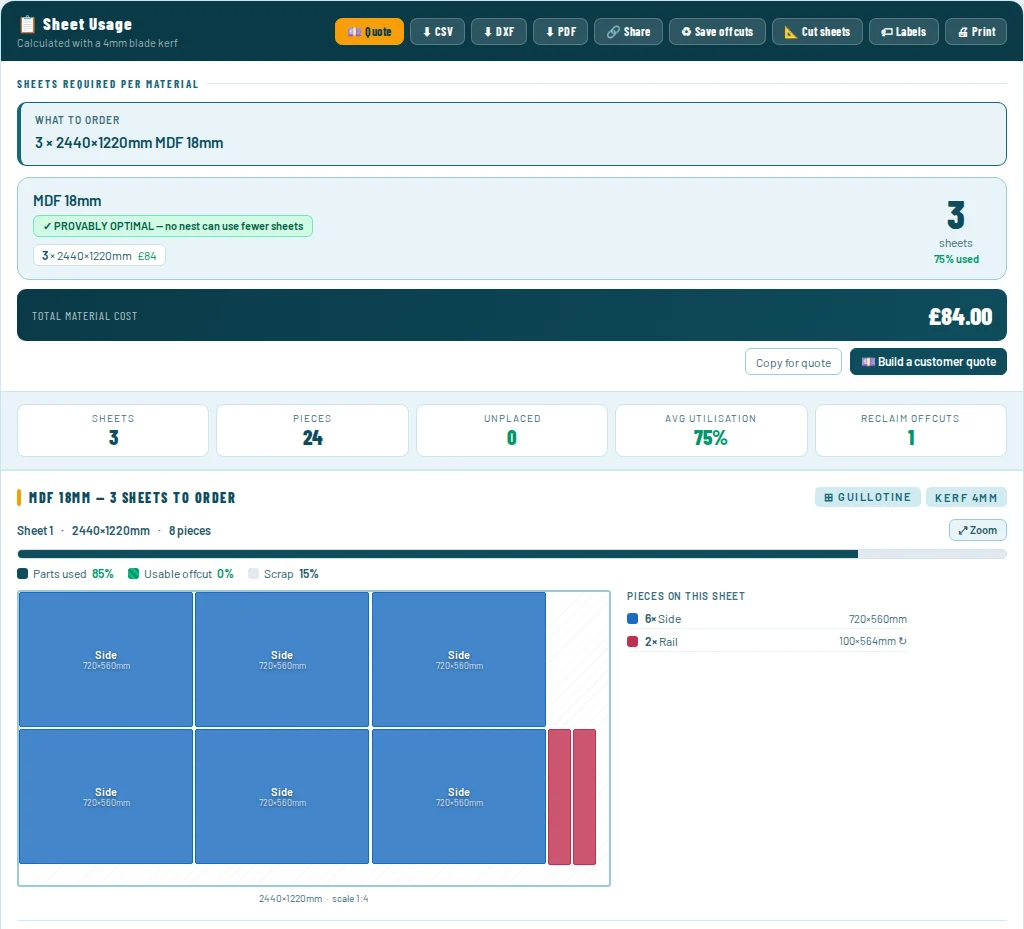
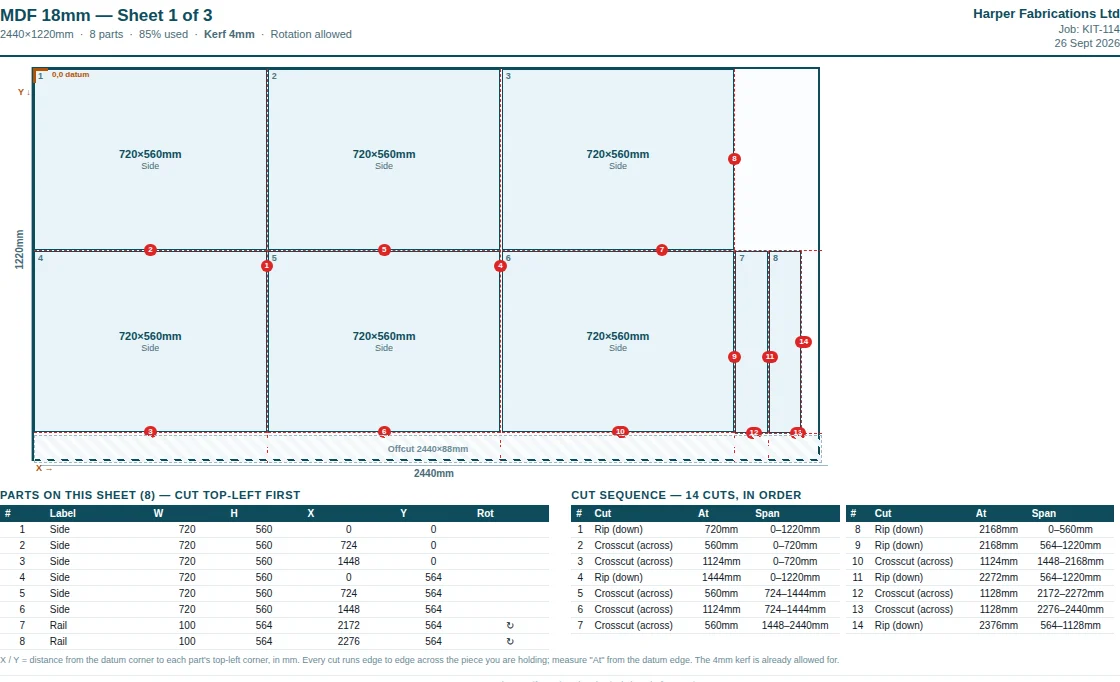
Running a saw or guillotine as well as a punch press or laser? Set cutting method per material. Free placement for CNC work, guillotine mode for straight cuts. Ideal for timber, decking and steel sheet alike. Comes with a numbered cut sequence for the saw.
Pro
Fast. Always.
CutNest runs in your browser, not on a shared server. A 50-piece job across three materials — steel, ply and acrylic — calculates in seconds. No queue, no waiting, works offline once loaded.
Works offline
Your materials, your prices
Set up your stock library with your actual sheet sizes and prices. Set an edge trim for sheets with rough edges. Pro takes up to 12 sizes per material, respects how many of each you actually have, and starts you off with a library of common UK grades.
Stock limits & extra sizes: Pro
Works with your existing setup
CutNest sits at the quoting stage — before production. Your tooler keeps using Dr. ABE Blank, AP100 or whatever they already run for punch programming. No conflict, no retraining, no disruption to your shop floor.
No disruption
Shop-floor paperwork
Visual layout showing exactly where every piece lands. Total sheets, total cost, waste percentage. Export to CSV on any plan. With Pro, print dimensioned cut sheets and saw lists for the machine, export PDF and DXF, and print a numbered label for every part so nothing gets mixed up on the bench.
Proof, not a guess
Every result is checked against a mathematical lower bound. When CutNest hits it, the layout is marked provably optimal: no arrangement of those parts, by any software, fits on fewer sheets or bars. When it can’t prove it, it says so honestly.
All plans
Bring your cut list
Open a CSV or Excel file straight from your drawing office or estimating sheet — CutNest reads the header row and finds the name, sizes, quantity and grain columns itself. Or paste from an email. Nothing is uploaded; the file is read in your browser.
All plans
Millimetres or inches
Work in mm, or in inches with the fractions your tape measure uses — type 23 5/8 or 8′ 6 and it just works. Prices in pounds, dollars, euros, lira and 15 more currencies. Every layout, cut sheet and export comes out in your units.
All plans
Free and Pro
Side by side
The free plan is the full nesting engine. Pro adds what a business needs to quote and run jobs: several materials, quotes, grain, DXF and labels.
| Capability | Free | Pro |
|---|---|---|
| Sheet nesting with free placement (laser, punch, plasma, router) | ✓ | ✓ |
| Bar, tube & extrusion cut to length | ✓ | ✓ |
| Checked against a lower bound: “provably optimal” when it is | ✓ | ✓ |
| Materials per job | 1 | 5, sheets and bars together |
| Sheet sizes per material | 2 | 12, cheapest mix picked |
| Stock library | 5 materials | Unlimited, plus 23 UK sheet grades & 9 bar sections |
| Edge trim for rough or damaged sheet edges | ✓ | ✓ |
| Parts per job | Up to 50 | Any number |
| Layouts and saw lists drawn to scale, on screen | ✓ | ✓ |
| Printable cut sheets & PDF export | – | ✓ |
| Open CSV & Excel cut lists, paste from email | ✓ | ✓ |
| CSV export | ✓ | ✓ |
| Millimetres or inches & fractions, 19 currencies | ✓ | ✓ |
| Works offline; your data stays in your browser | ✓ | ✓ |
| Back up & restore your library | ✓ | ✓ |
| Customer quotes: cutting time from the layout, your rates, markup, VAT, your logo | – | ✓ |
| Stock limits: how many of each size you have | – | ✓ |
| Grain lock, per material or per part | – | ✓ |
| Guillotine mode with a numbered cut sequence | – | ✓ |
| Cost-aware optimisation: least spend, not just fewest sheets | – | ✓ |
| Remnants & offcut stock | – | ✓ |
| DXF export for CNC, laser & router | – | ✓ |
| Printable part labels (Avery A4 & US Letter) | – | ✓ |
| Job history (last 50 jobs) & unit quantity multiplier | – | ✓ |
| Price | £0 | £12/month + VAT |
No account and no card for the free plan. Pro starts with 14 days free. Try Pro free →
The real app
What you get, screen by screen
Real screenshots of CutNest, not mock-ups. Tap any one to see it full size.
Questions
Straight answers
Yes, with Pro. Set the cutting method per material. “Free placement” for CNC punch, laser and router. “Guillotine” for saw or shear cutting where every cut goes edge to edge. Works for timber, steel sheet, acrylic — mix both in the same job.
Yes. Choose inches in Settings (or on first start) and every size is typed and shown in inches, with fractions: 23 5/8, 3/32 kerf, 8′ 6. Layouts, cut sheets, CSV and DXF exports all come out in inches, and you can switch back to millimetres at any time. Prices can be in pounds, dollars, euros, lira or 15 other currencies.
With Pro, yes. The Labels button prints one label per part on standard Avery sheets (L7160, L7163, L7159 on A4, or 5160 and 5163 on US Letter). Each label shows the job, part name, size, material and the same sheet and part number as the cut sheet, and flags parts whose grain is locked. You can skip labels already used on a part-used sheet.
Yes. Set an edge trim on the material in your Library (for example 10mm) and CutNest nests parts inside the trimmed area, on every plan. Saw cut sheets tell the operator to trim first and measure everything from the trimmed edge; CNC layouts show the trim as a border to keep clear of.
With Pro, tick “Lock grain” on that material in your library, or set it per part with the grain button on each row — so doors stay with the grain while shelves and backs are free to turn and fill the gaps. Works for brushed stainless, veneered MDF, wood grain, patterned glass — any material where rotation matters. CutNest will never flip a locked piece against the grain.
No — CutNest works at the quoting stage, before production starts. Your tooler keeps using whatever they already run (Dr. ABE Blank, AP100, SigmaNEST etc) for punch programming and NC code. The two tools serve completely different purposes and never overlap.
Free placement uses the MaxRects algorithm to pack pieces anywhere on the sheet — the same approach used in industrial nesting software. It’s ideal for CNC punch presses, plasma cutters, lasers, and routers where you can cut in any direction. Guillotine mode restricts cuts to full edge-to-edge straight lines, just like a manual guillotine shear or panel saw. Use guillotine mode for timber, MDF, and sheet cutting on saws where you can only make straight cuts across the full sheet. You set the cutting method per material in your library. Guillotine mode is part of Pro; the free plan uses free placement.
Try it on your own job
Free, in your browser, no account. Your cut list stays on your computer.